

TechLab Part 2
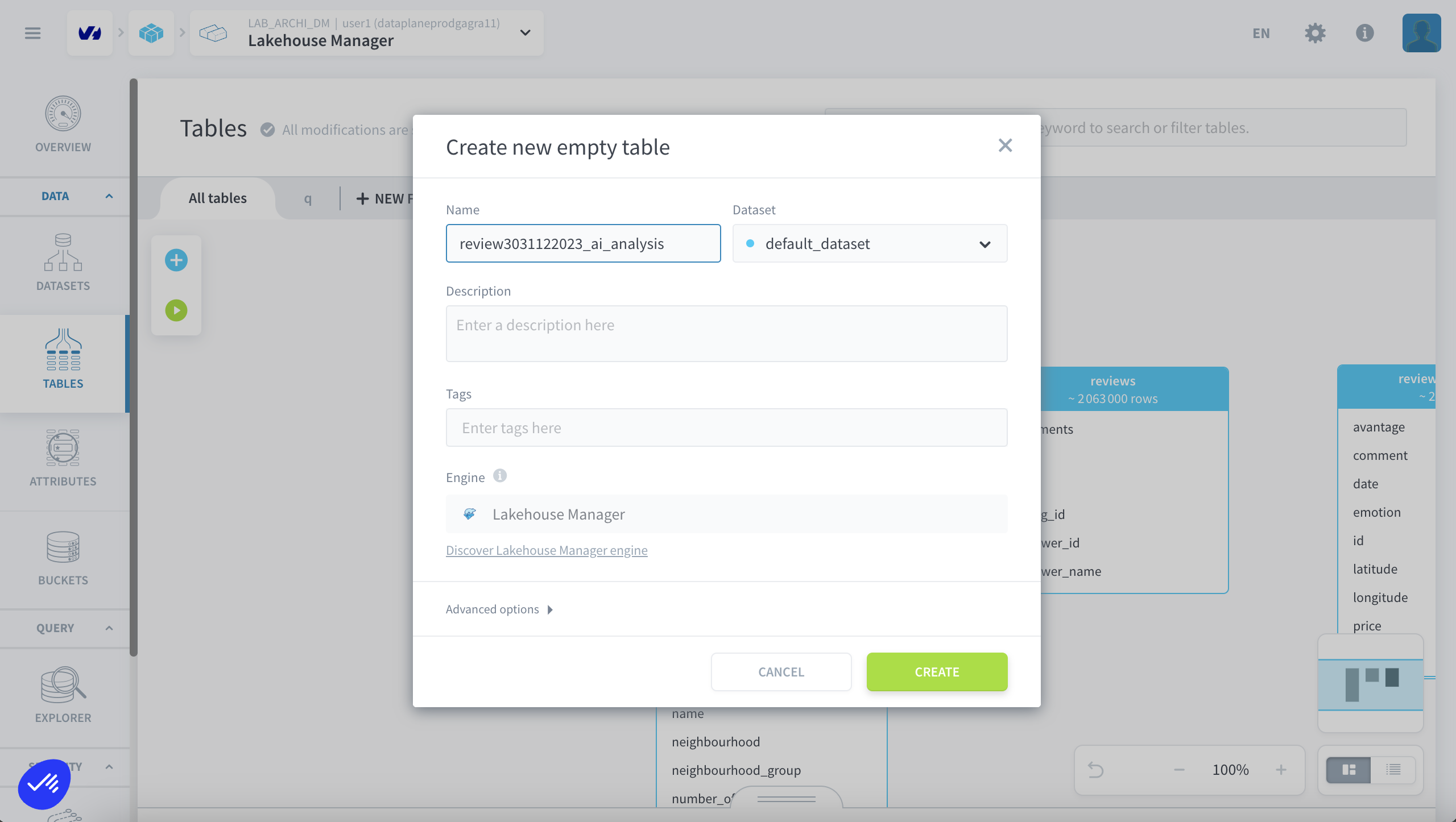
1 - Duplicate existing tables
- Duplicate the table
review3031122023and name itreview3031122023_ai_analysis - Then, build this new table:
review3031122023_ai_analysis
2 - Analyze Airbnb comments using AI Endpoint
We will look at AI Endpoint to analyze Airbnb comments. The goal is to obtain the emotion and the main advantage from the various Airbnb comments specific to each listing. To achieve this, we need to define a language model for this purpose.
2.1 - Access the AI Endpoint website
Here you can access the AI Endpoint website: https://endpoints.ai.cloud.ovh.net/ and open gpt-oss-20b to verify the model configuration.
2.2 - Define a custom action from the DPE platform
From the data processing engine, create a custom action:
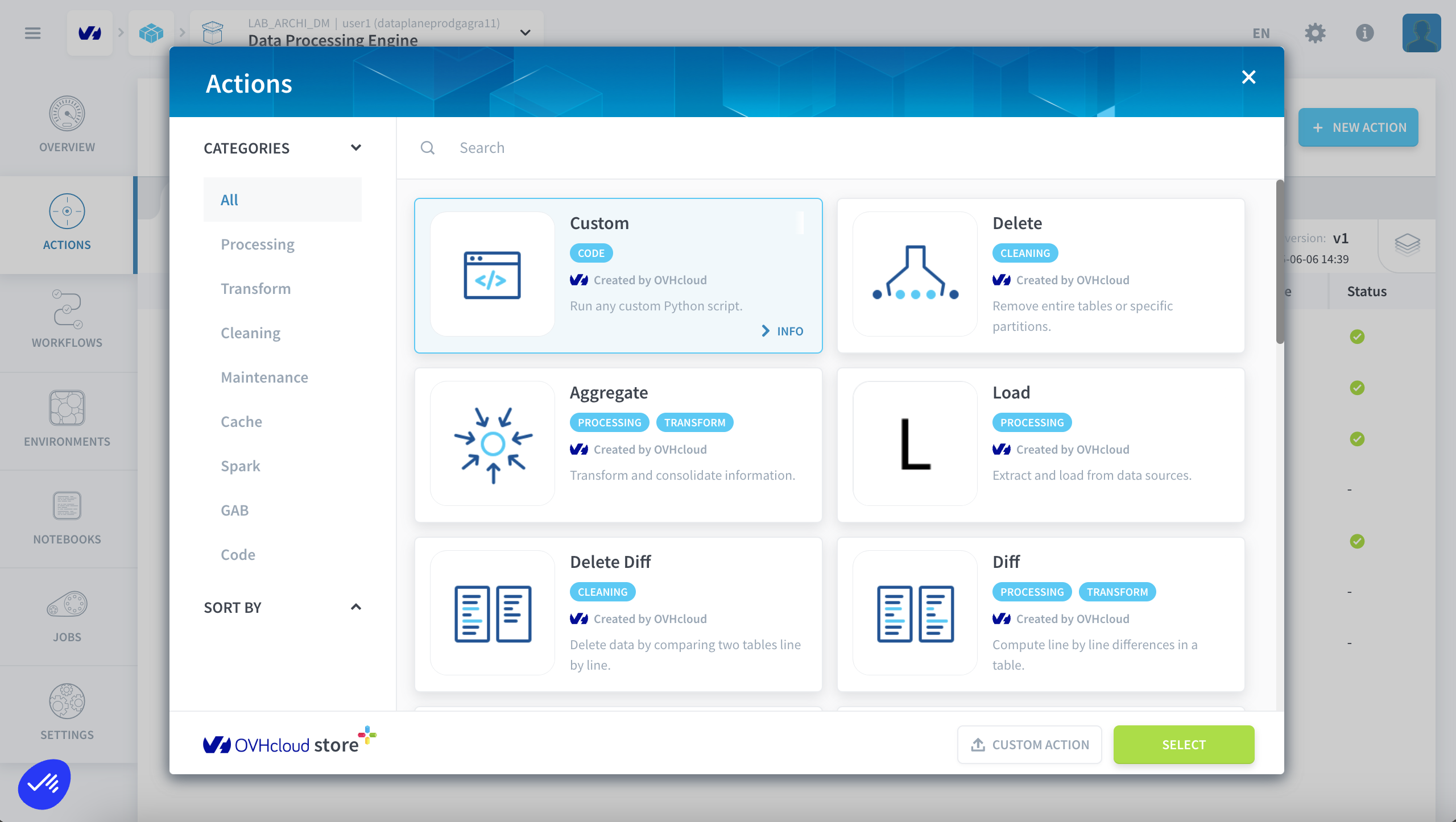
Then upload the Python file: airbnb_paris_reviews_analysis.py
File link: https://rbnbfortechlab.s3.gra.io.cloud.ovh.net/airbnb_paris_reviews_analysis.py
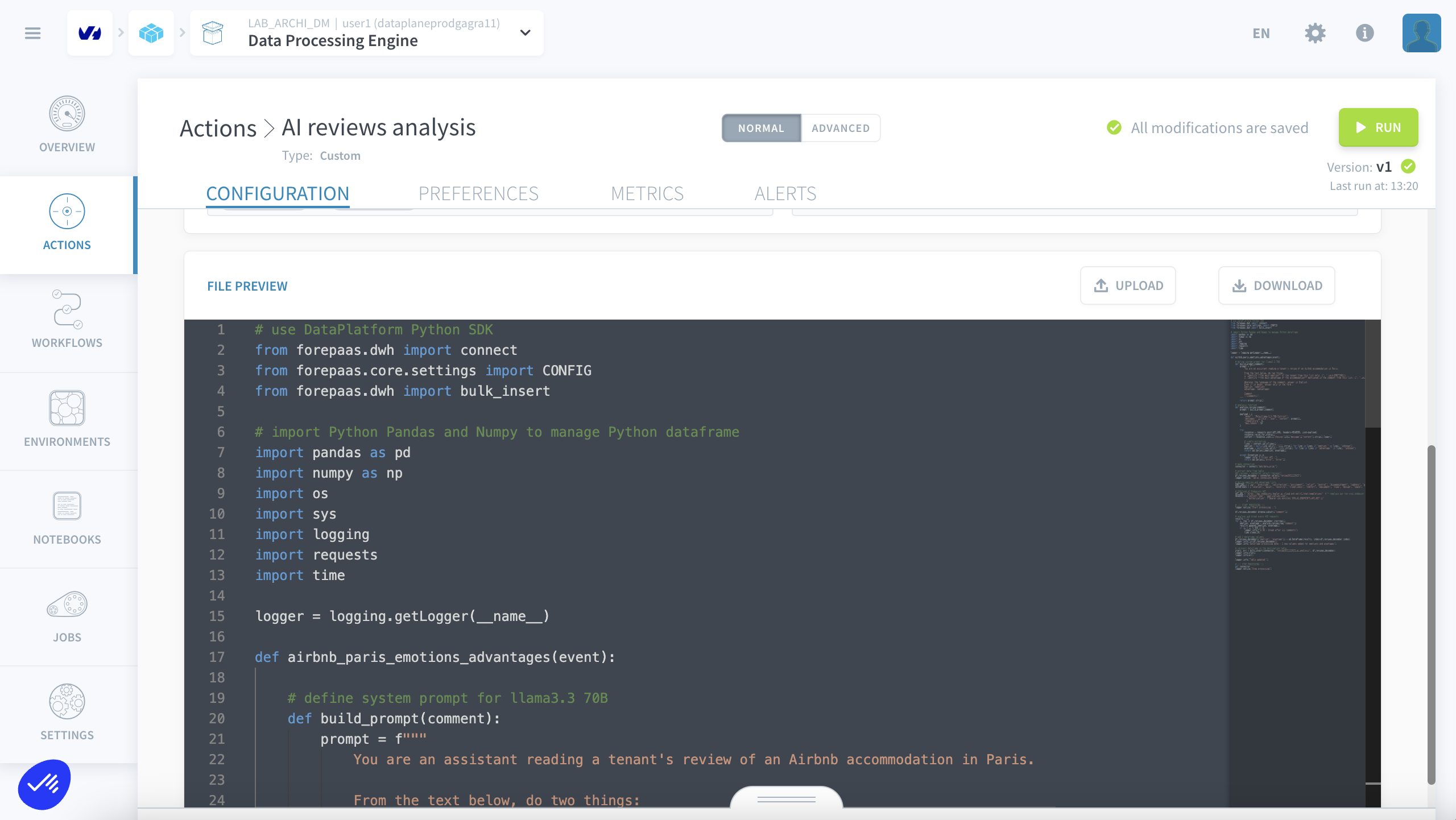
Configure the custom action:
- Name:
AI Comments Analysis - Function name:
airbnb_paris_reviews_analysis - Language:
Python 3.11 - Dependencies:
pandas,numpy - Name:
OVH_AI_ENDPOINTS_API_KEY - Paste the value of the key you created in your client space earlier
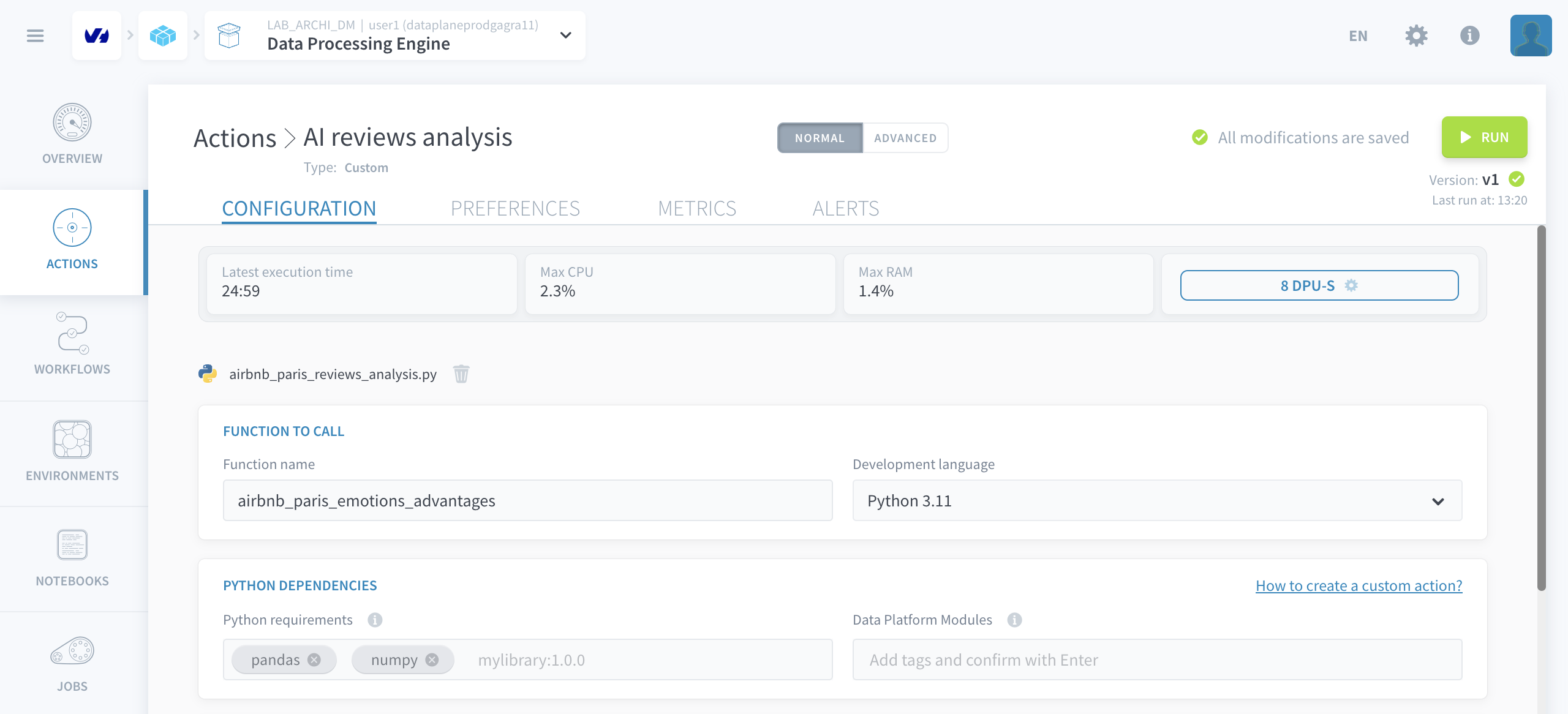
Now go to the Preferences tab and add the AI Endpoint API key:
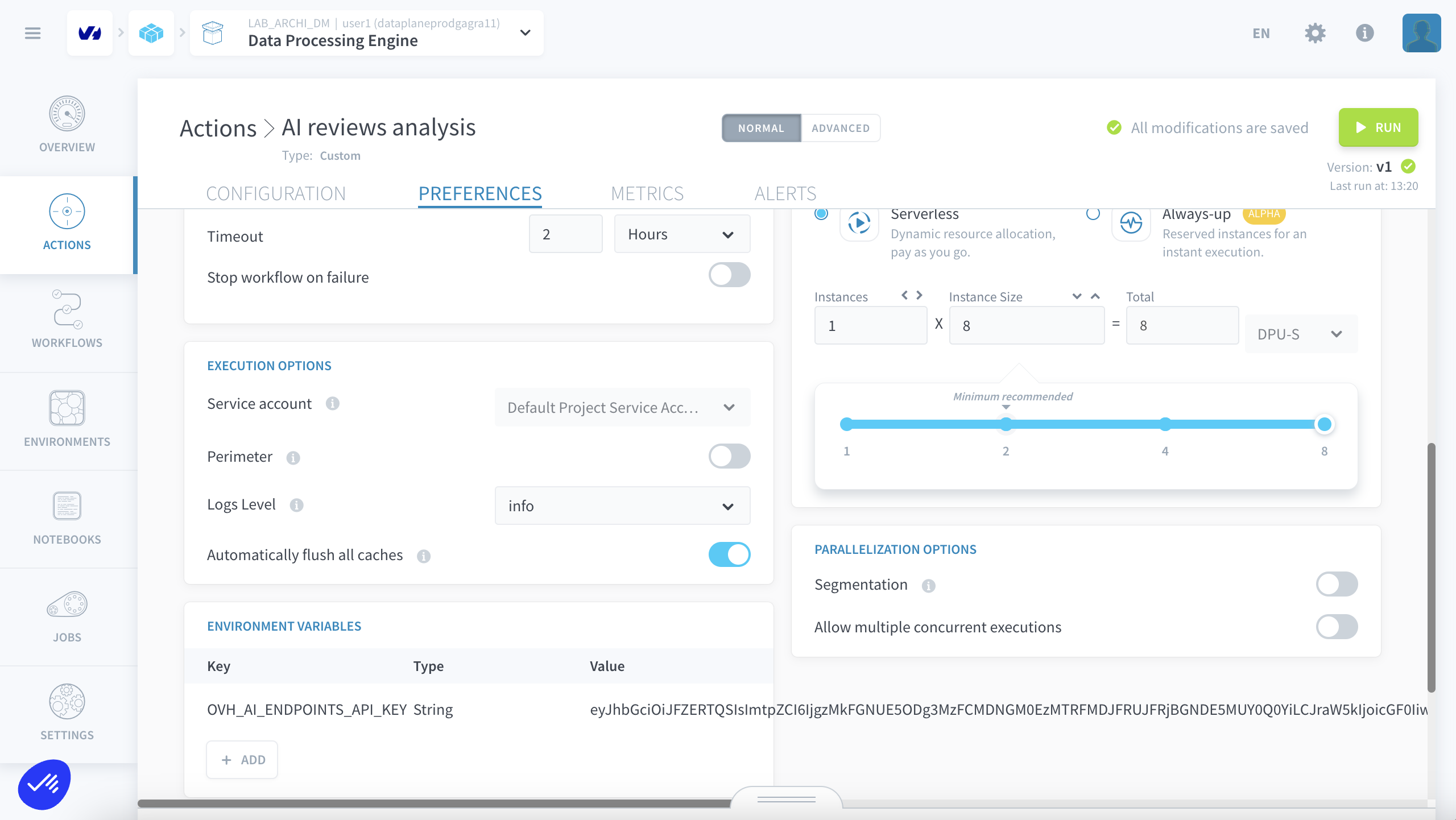
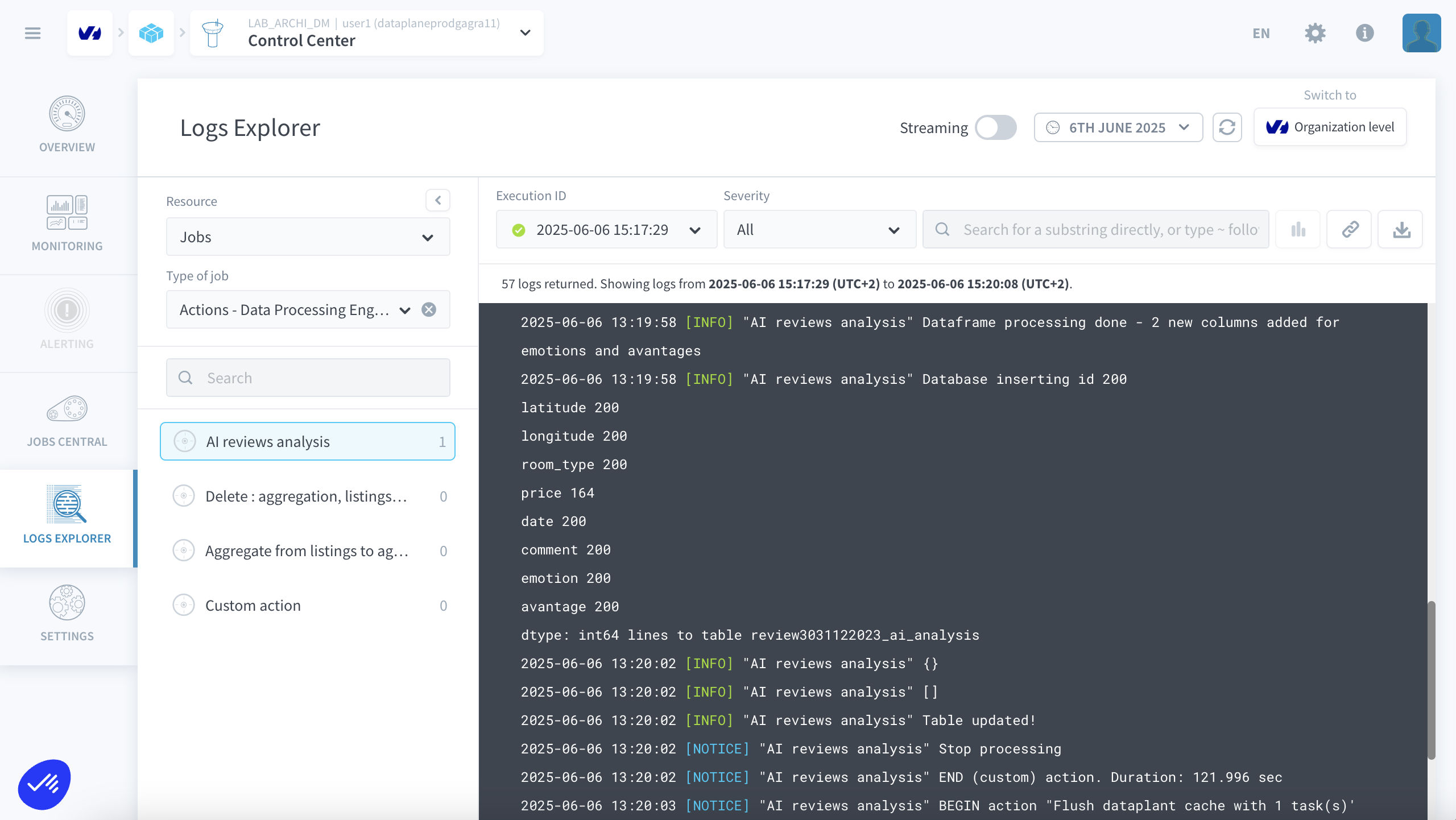
Create the custom action and click Run. You can monitor the progress in the logs.
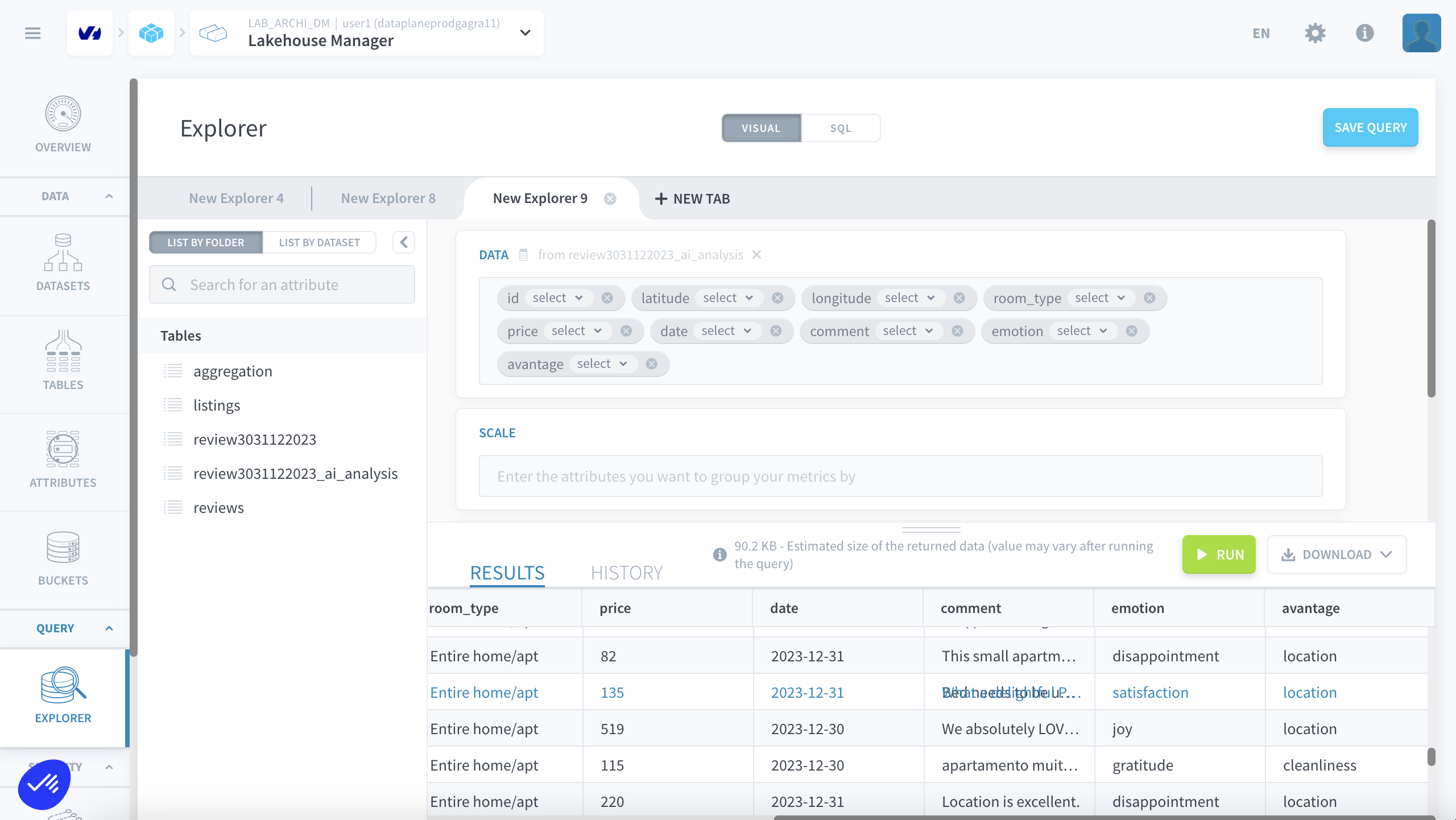
Once finished, check the new table in Lakehouse Manager Explorer:
3 - Create a dashboard to visualize the data
To create a new dashboard, go inside the Analytics Manager.
3.1 - Creating queries
Create your first query, select “SQL”, and name it nb_comments_airbnb_from_december_30_to_31_2025.
Run the first query:
SELECT
  COUNT(*) AS nb_airbnbs,
  nb_comments_december_30_31_2025
FROM (
  SELECT
    id,
    COUNT(comment) AS nb_comments_december_30_31_2025
  FROM review3031122023_ai_analysis
  WHERE comment IS NOT NULL
  GROUP BY id
) sub
GROUP BY nb_comments_december_30_31_2025
ORDER BY nb_comments_december_30_31_2025;
You should get something like this:
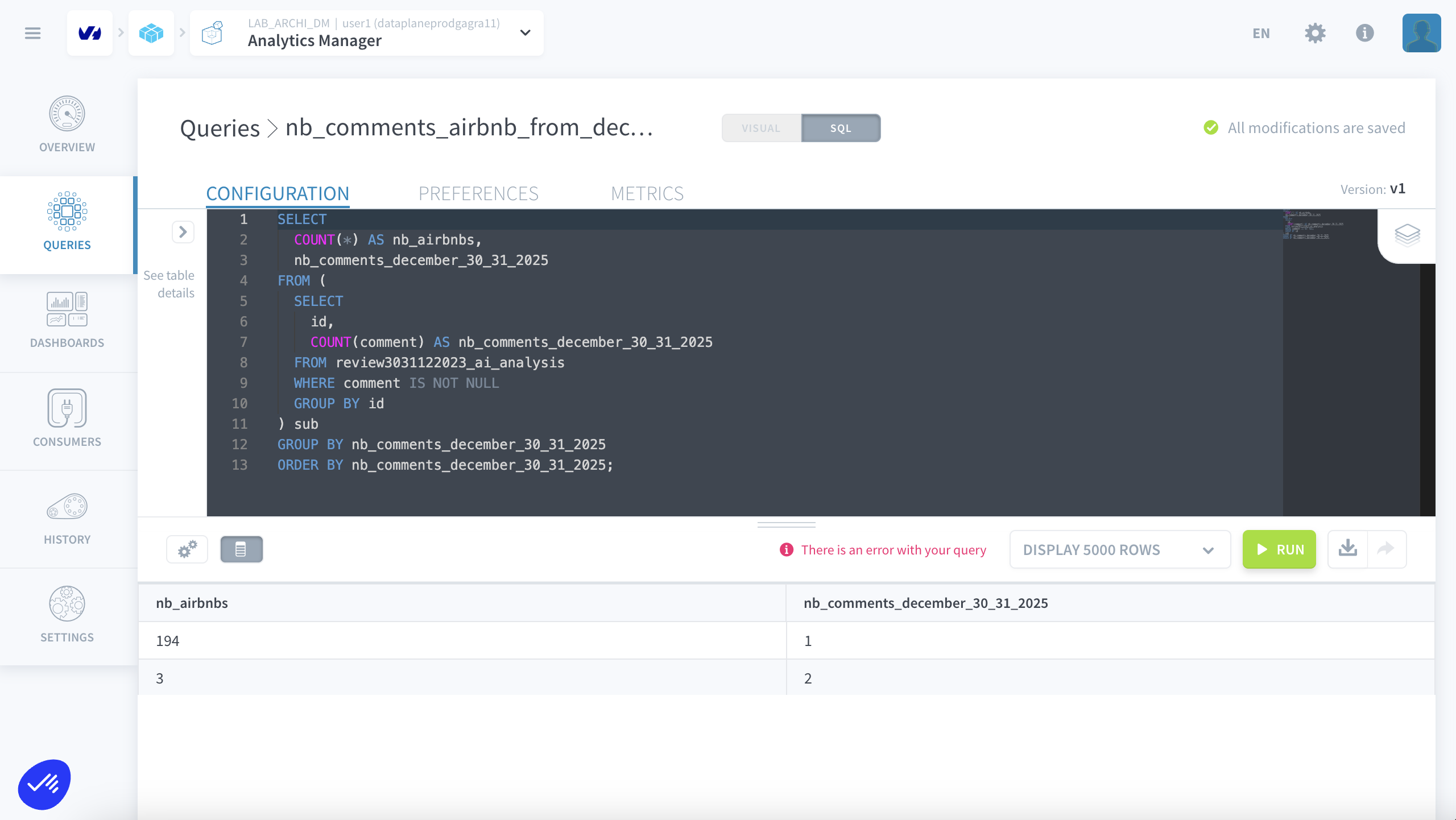
Then you can create two more queries as follows:
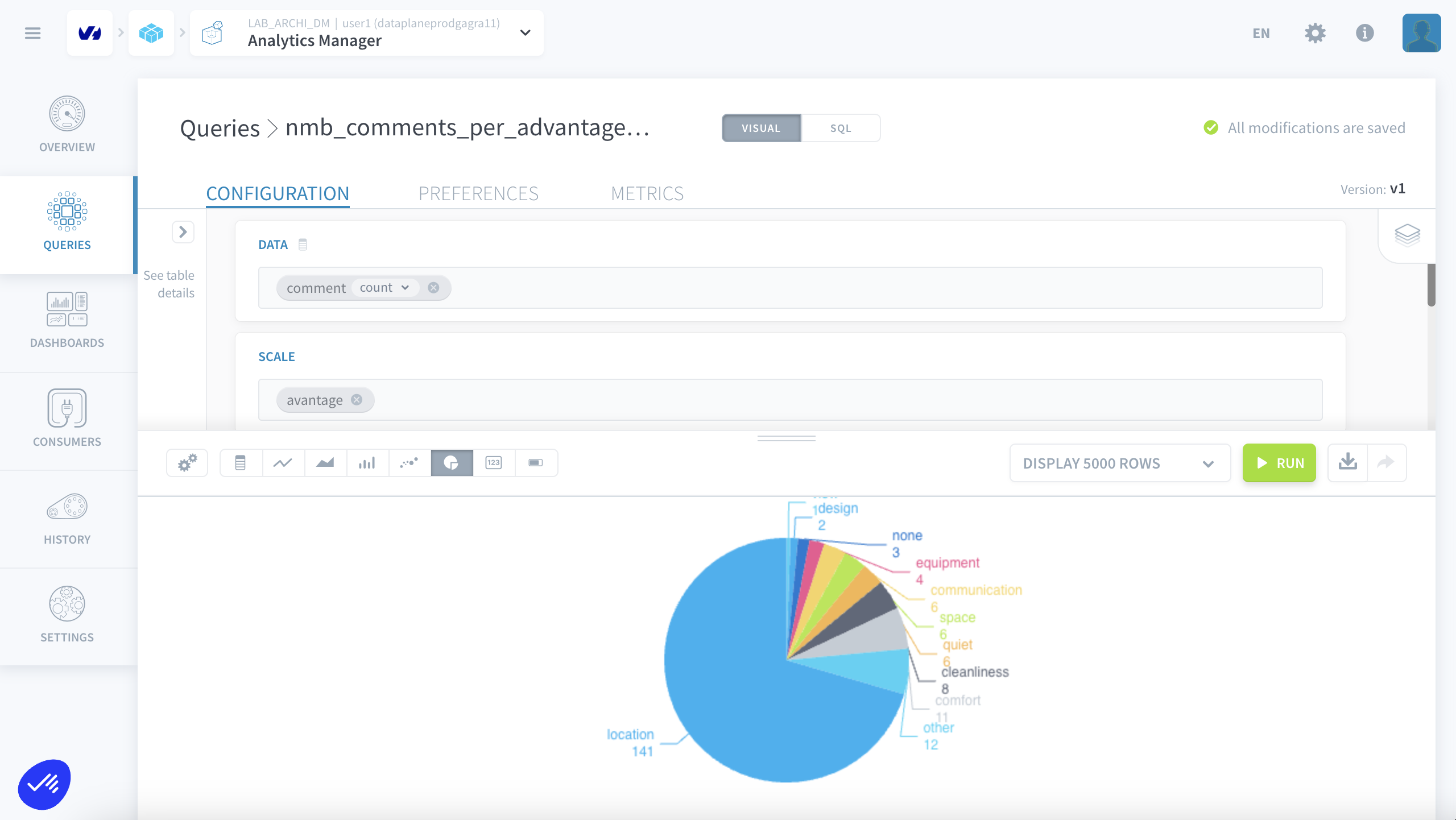
nmb_comments_per_advantage_dec_30_31_2025
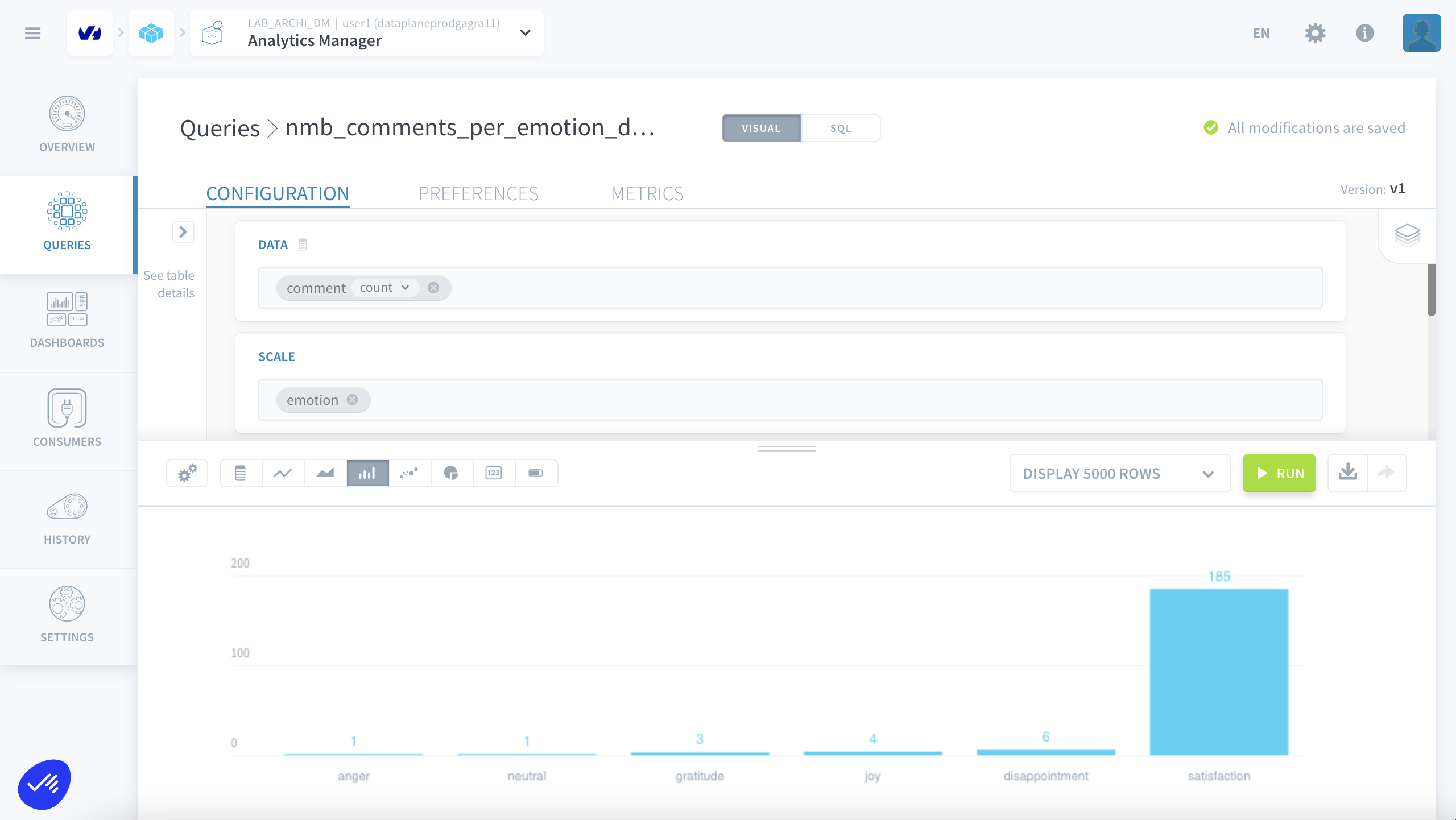
nmb_comments_per_emotion_dec_30_31_2025
3.2 - Creating the dashboard
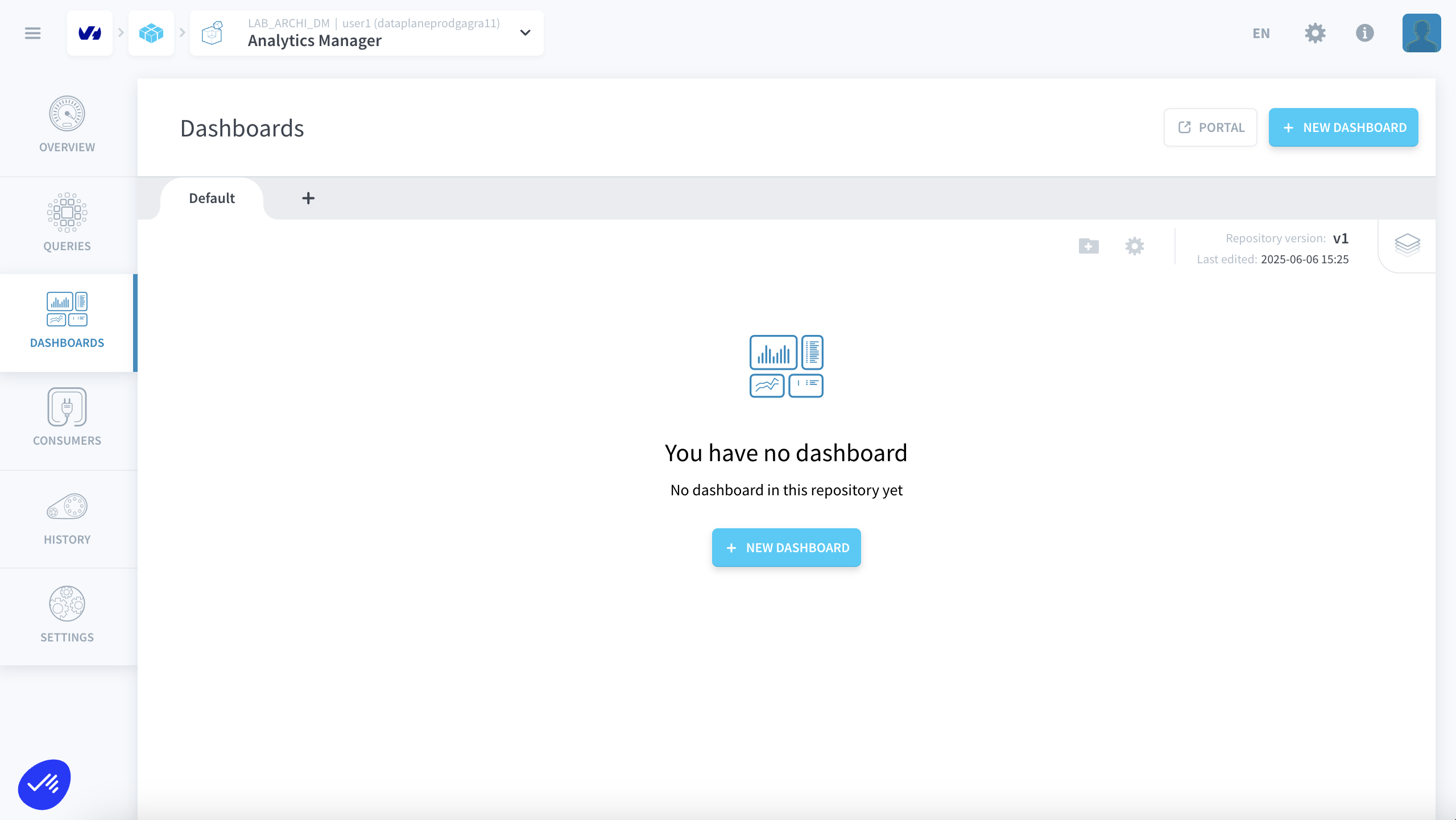
You can now create a new dashboard:
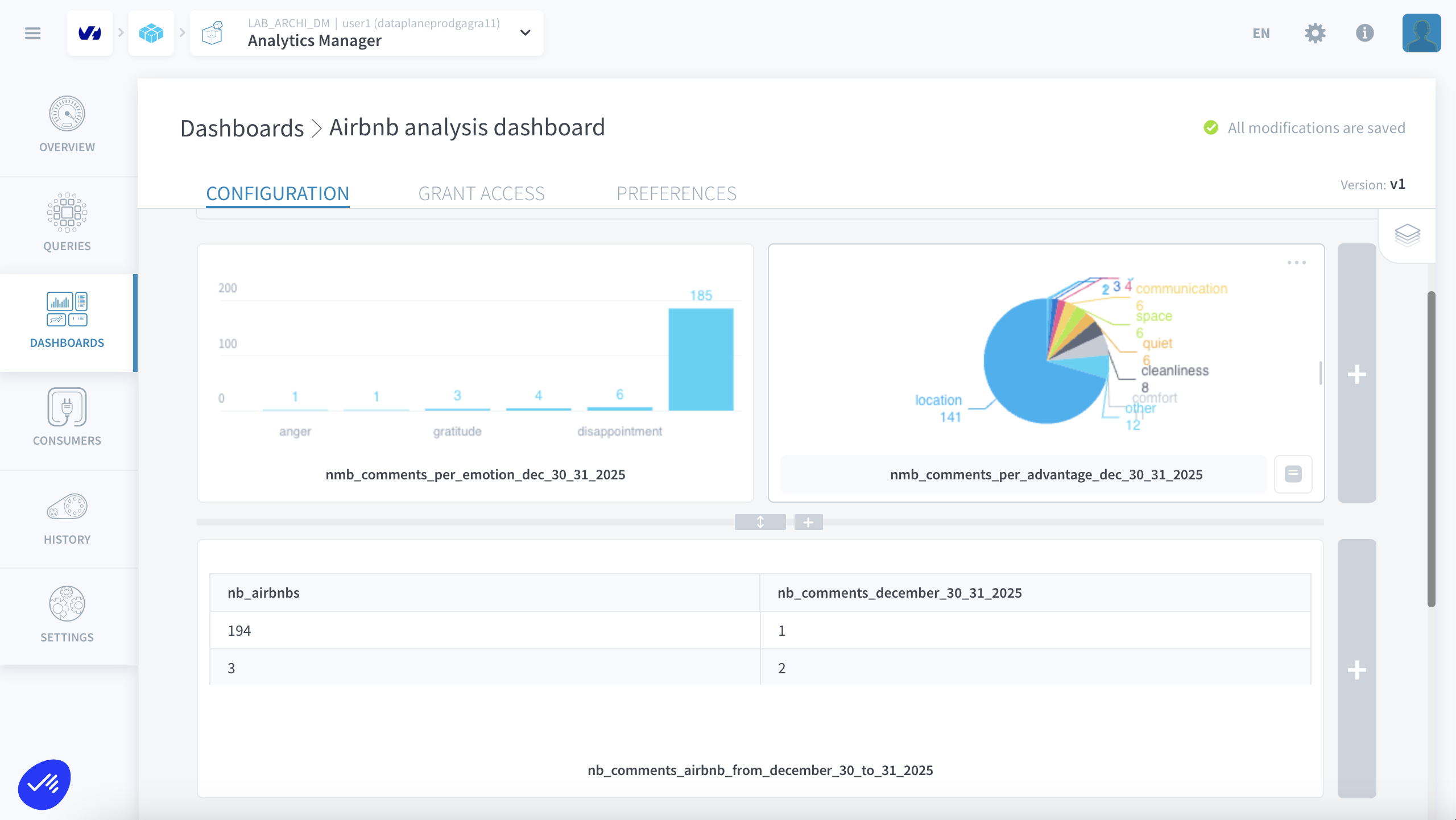
Add the various queries to build a complete dashboard:
4 - App demonstration + API link
Demo of Superset integration can be found here: Superset tutorial
Other useful links: